
How do I turn a frame into a video clip?
A clip adds motion to a storyboard frame, with camera moves documented for the selected model.
Published
Updated
Which video model should I use for a clip?
Seedance 1 Lite is the cheapest draft: 8 credits for 5 seconds at 720p. With active Pro and Studio, try Google Veo 3.1 (320 credits for 8 seconds, 1080p with audio on) or Kling 3.0 (84 credits for 5 seconds, Standard 720p with audio off) to animate your selected frame with optional audio. Inspect your results. (as of November 2026.)
Make a talking video
Select OmniHuman 1.5 (talking) in the Generate Clip window or full clip editor to animate a person's or character's face speaking or singing to your audio. Choose a project voiceover made with your own ElevenLabs key, or upload MP3, WAV or M4A audio (under 35 seconds, 4 MB). Every audio file must be shorter than 35 seconds. Your browser converts the audio to WAV. Yaklip measures the stored WAV on the server before charging. Add an optional prompt for scene, movement or camera direction.
The clip follows the audio length. OmniHuman costs 16 credits per rounded-up second: 17 s audio costs 272 credits. Fast mode has the same price. Available on active Creator, Pro and Studio plans, including when using your own Replicate key (zero Yaklip credits). No platform text-to-speech is included. If the model cannot animate your frame, try a frame with a clear face; provider failures refund platform credits once. Prices and availability as of November 2026.
How do I make my first clip in one click?
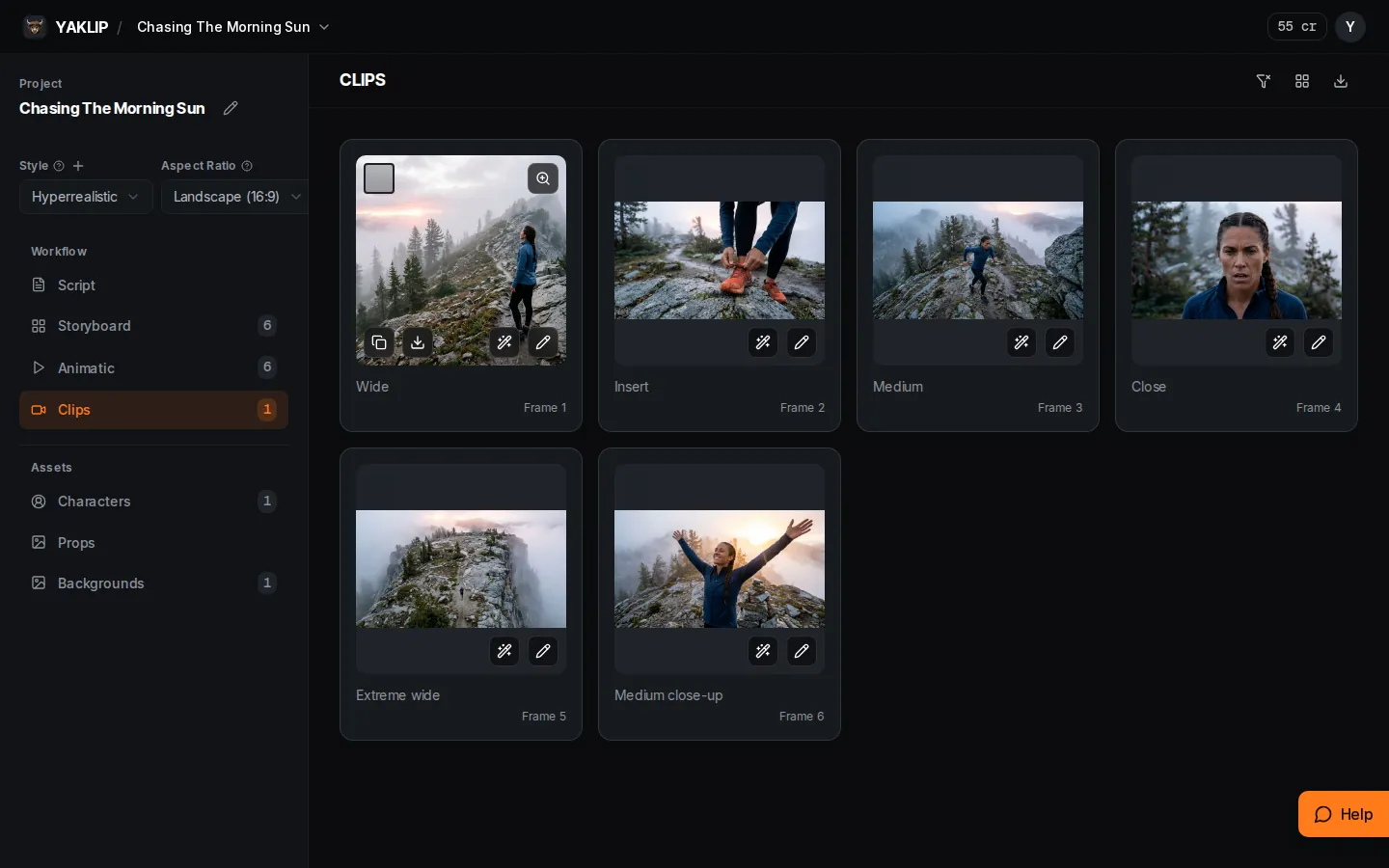
Open Clips in the editor and press Animate · 12 cr on a frame with no clip yet. It starts immediately using Seedance 1 Pro Fast, 5 seconds at 720p, From prompt camera and the frame action as its prompt (as of November 2026). The aspect ratio maps to the closest option the model supports. A frame needs an image before you can animate it. Use the wand, labelled More options, to change settings before generating.
How do I generate and choose a clip?
- Open Clips in the editor. Use the wand, labelled More options, on the frame you want to animate.
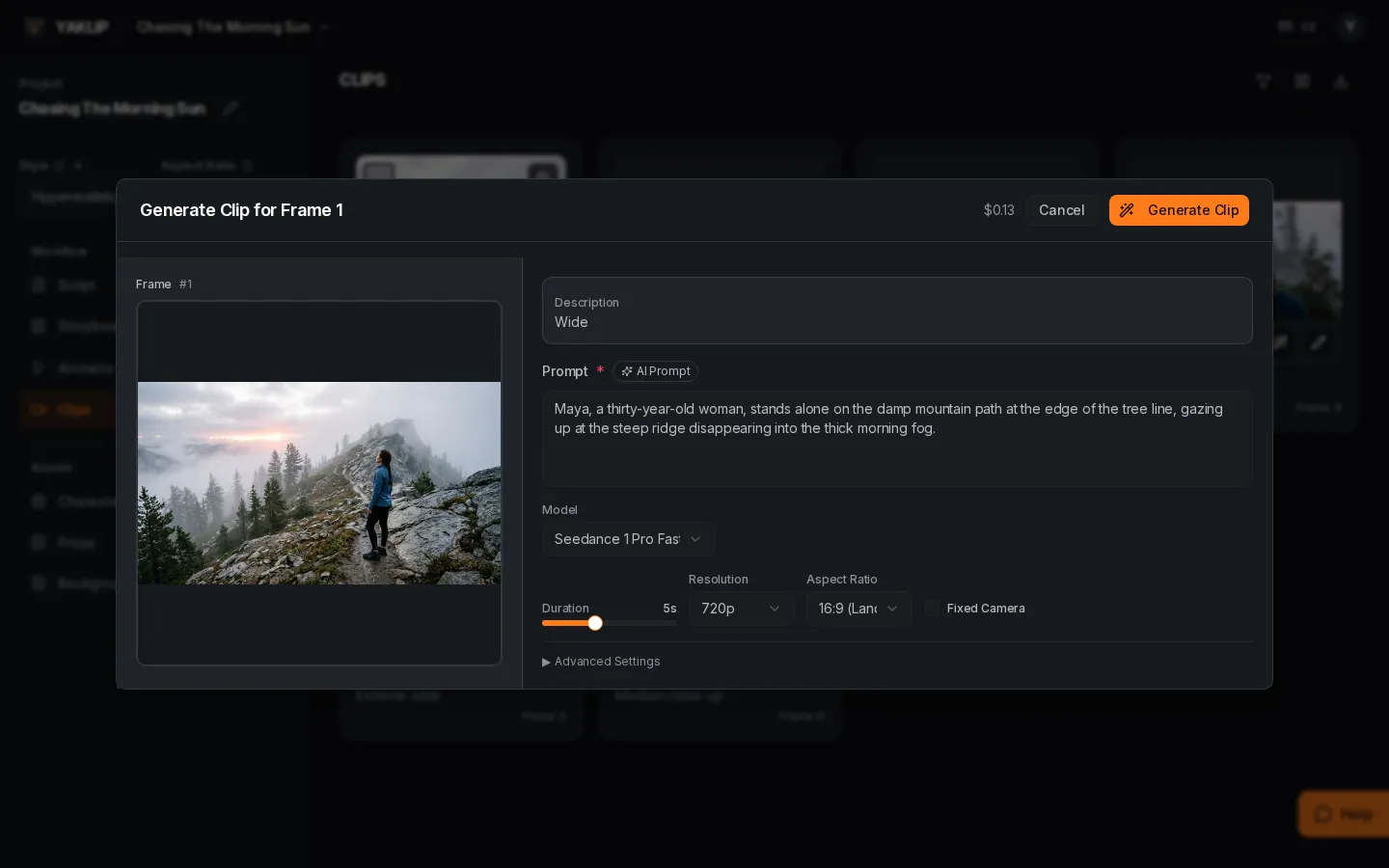
- In Generate Clip, review the Prompt prefilled from the frame action, write your own, or use AI Prompt.
- Choose a Model. Google Veo 3.1 and Kling 3.0 animate the selected frame and require active Pro and Studio, including with your own key. Their options are disabled for other plans; the dialog says "Available on the Pro plan."
- Set Duration and Aspect Ratio where available. The initial ratio is the closest option the model supports for your frame, keeping portrait or landscape where supported. A supported ratio you choose stays selected when you switch models; otherwise it maps to the closest supported option. Google Veo 3.1 offers Resolution and Generate Audio. Kling 3.0 offers Quality and Generate Audio. Choose Still to fix the camera on Seedance; expand Advanced Settings for other options.
- Read the credits on Generate, then press it. Generations using your own key cost zero Yaklip credits. (as of November 2026.)
- When the clip finishes, open the frame's clip takes and select the result you want. Use the approval checkbox to mark a clip approved.
Choose a camera move
Leave From prompt selected to use your own words, or choose a move documented for your model above the prompt. Choose a direction where offered and Gentle, Normal or Fast speed for moving shots. Remove the camera chip to return to From prompt. Reopening a saved take with the wand or pencil restores its original prompt and camera chip. The pencil editor has the same camera picker. Saved fixed-camera takes open as Still. Another frame does not inherit that camera choice. In the Generate Clip window, AI Prompt receives your chosen move. What we'll send shows the combined prompt.
Tiles preview motion on your frame for free. With reduced motion, they show a still frame and a symbol. AI follows camera moves loosely; previews are motion guides, and results will differ. Loose marks mean limited vendor examples or weak results; documented wording does not guarantee a successful move. Dolly zoom is experimental and asks for a second Generate click. A camera move does not change the clip price (as of November 2026).
Which camera moves does each model offer?
| Model | Camera moves |
|---|---|
| Seedance 1 Lite | Still, Push in, Pull out, Slide, Tilt, Orbit, Follow (loose), Handheld, Rise up (loose; Gentle or Normal). Pan is not offered. |
| Seedance 1 Pro / Seedance 1 Pro Fast | Still, Push in, Pull out, Pan, Slide, Orbit, Follow, Tilt (loose), Rise up (Gentle or Normal). |
| Kling v2.5 Turbo Pro | Push in, Orbit; Still, Pull out, Pan, Tilt and Follow are loose. No Slide, Rise, Handheld or Dolly zoom. |
| Kling 3.0 | Still, Push in, Pull out, Pan, Tilt, Orbit, Follow; Rise up and Handheld are loose. |
| Google Veo 3.1 | Still, Push in, Pull out, Pan, Tilt, Slide, Orbit, Rise up/down, Follow, Handheld; Dolly zoom is experimental. |
From prompt is available on every model. Switching models resets an unavailable move, direction or speed to From prompt and shows a short explanation, in both the wand and pencil editor. Camera wording uses the frame's first cast member or a noun from its action. Seedance Still uses the fixed-camera flag; other moves use prompt wording. Google Veo 3 is hidden from model selection; existing clips still display.
In our Seedance Lite test, Pan barely moved, Fast Rise failed and Follow failed with generic wording. Slide and Follow with a named cast member still need live testing. Motion previews do not predict those results.
How should I describe motion?
Try one camera move, one action and a mood. For example: The camera slowly moves closer as Maya ties her shoes, with quiet dawn light. Keep the motion focused so you can judge the result.
What happens if a job fails?
Unstarted job failures and confirmed provider failures are refunded automatically; jobs you cancel and delivery failures after provider success are not refunded. (as of November 2026.)
How do I make an animatic and export an MP4?
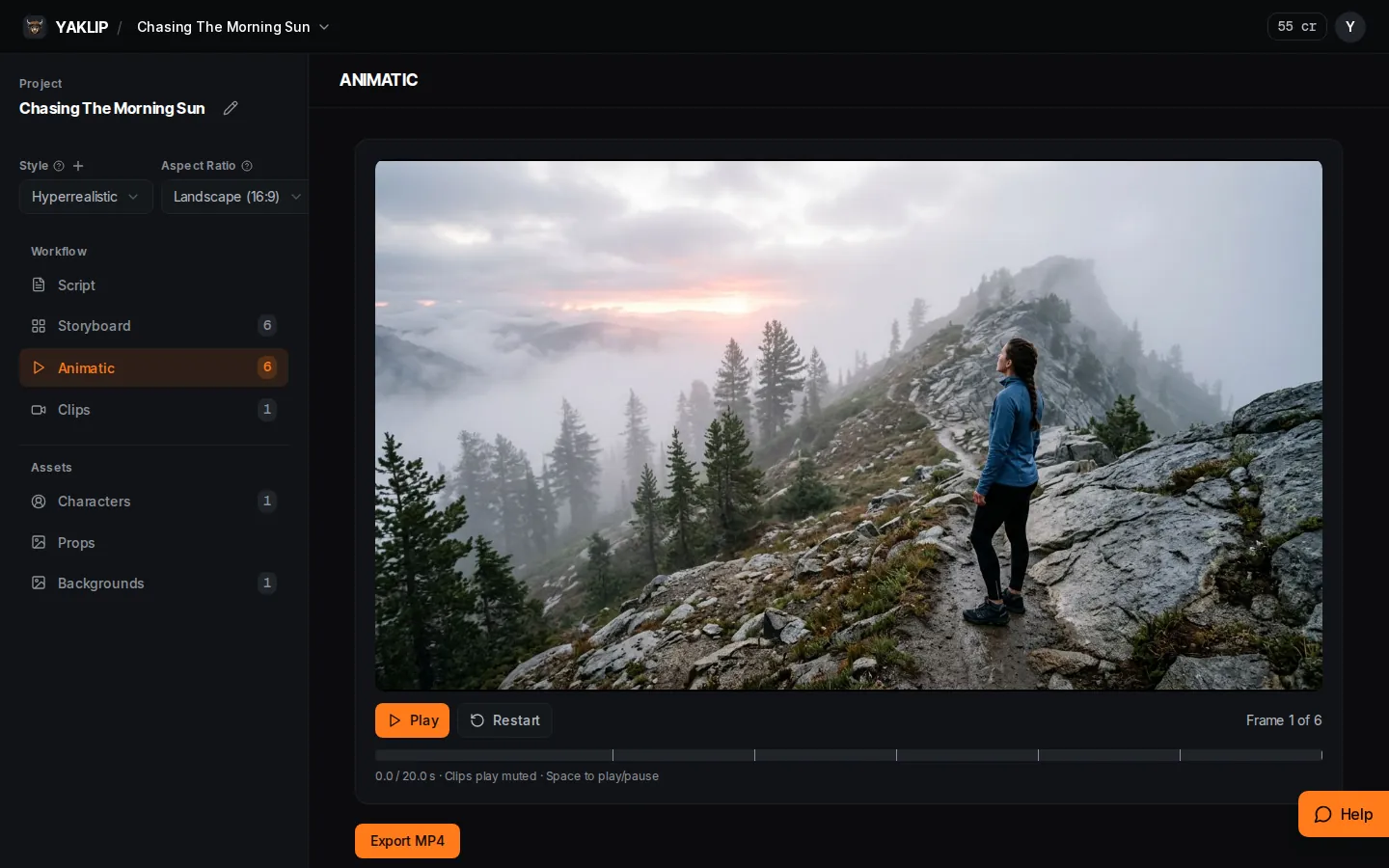
Open Animatic to preview the sequence. A selected clip plays in place of its still frame; set durations for the stills. Use Export MP4 to save the sequence.
On /start, Make my video animates a Story or Ad board and exports an MP4 after you review the estimate and spend limit. You can arrange frames, set still durations and export an animatic MP4 with simple cuts and a selected voiceover, up to 60 frames or 3 minutes. Free: 720p with a small Yaklip mark. Paid: 1080p without a mark. No music or transitions. For further editing, export to CapCut, Premiere, DaVinci or any editor. (as of November 2026.)
Related guides
Got any questions left?
Do all video models animate my frame?
The offered Kling, Seedance and Google Veo 3.1 models receive the selected frame image. Google Veo 3 is hidden from selection; existing clips still display.
Can I control sound in the Veo form?
Yes for Google Veo 3.1: use Generate Audio.
Are all failed jobs refunded?
Unstarted job failures and confirmed provider failures are refunded automatically; jobs you cancel and delivery failures after provider success are not refunded.
Can a sketch change its look in motion?
Yes. In the recorded lighthouse example, pencil-sketch water became painted water. Inspect the result before choosing a clip.
Was this helpful?