
How do I time my frames and export an MP4?
An animatic plays your storyboard as a sequence so you can review its timing before sharing a video file.
Published
Updated
How do I make an animatic in Yaklip?
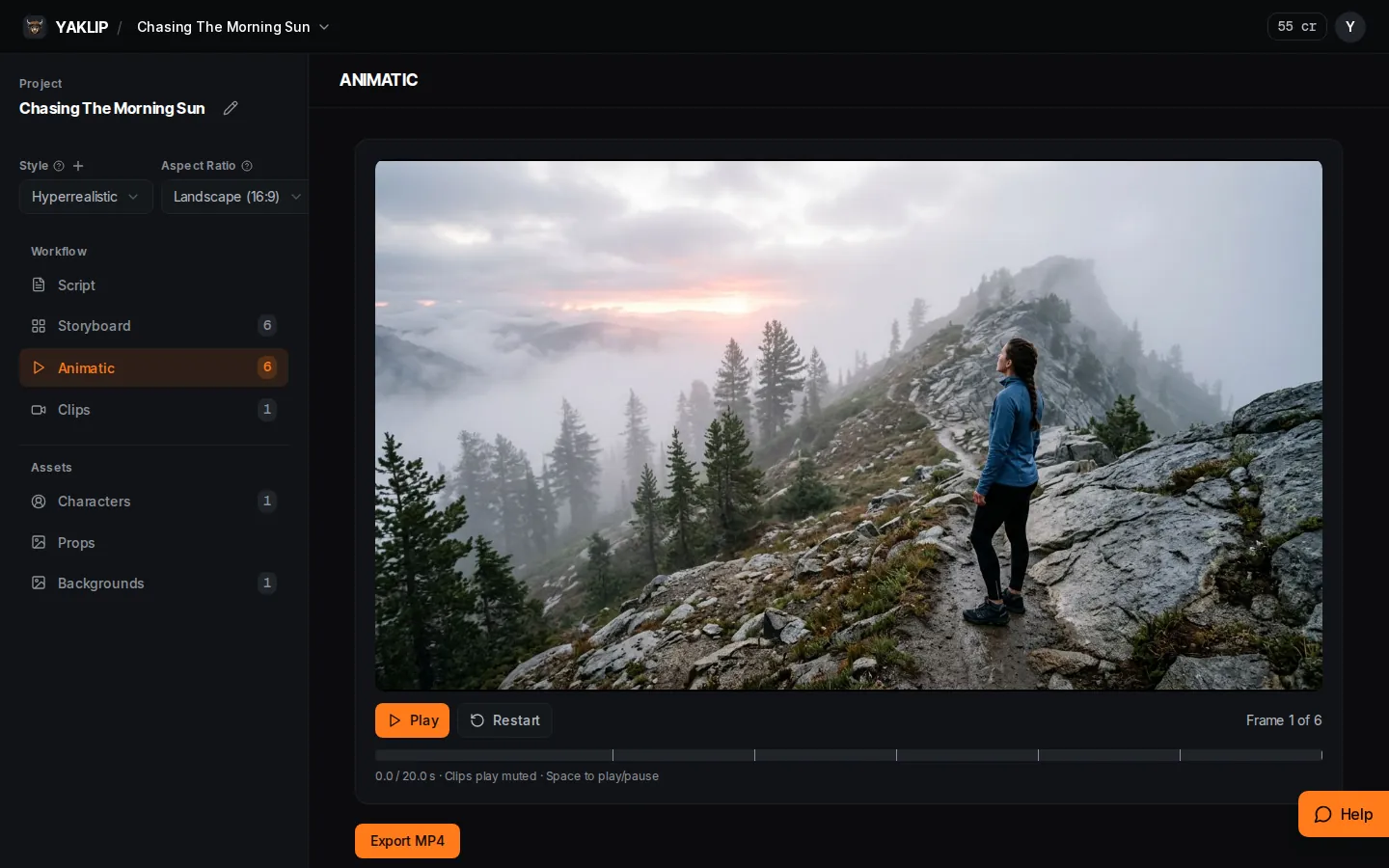
For a Story or Ad board on /start, Make my video animates frames and exports an MP4 after you review the estimate and spend limit. For manual timing, open Animatic to play frames in storyboard order. A frame uses its chosen clip when available, falling back to the newest clip take if none is selected. Adjust still lengths and frame order, then use Export MP4 to make a video file. Export supports up to 60 frames and 3 minutes (as of November 2026). Clips play muted. A selected voiceover can accompany the export; there is no music track or transitions.
How do I set frame order and length?
- Open Animatic and use Play, Pause or Restart to review the sequence.
- Use the up and down arrows beside a frame to change its position. On desktop, you can also drag the handle. This saves the storyboard order.
- For a still image, change its seconds field. Stills default to 3 seconds and accept 0.5 to 10 seconds in half-second steps (as of November 2026). Clip lengths come from the media duration when loaded, then the saved clip duration, with a 5-second fallback (as of November 2026). You cannot trim clips in this timing field.
What is in the MP4?
The export follows your project aspect ratio at 30 frames per second (as of November 2026). Free MP4 exports use a 720-pixel short edge and a small Made with Yaklip mark. Active paid plans use a 1080-pixel short edge without that mark. The limit is 60 frames and 3 minutes, and export costs zero credits (as of November 2026). Clips are measured again during rendering.
Clip audio is omitted. The export uses a voiceover when exactly one take is selected, or when the project has only one voiceover. With multiple selected takes there is no project-level voiceover order, so the export has no voiceover. It uses simple cuts, with no music track or transitions. Export clips to an editor for further editing.
How do I get the finished file?
- Press Export MP4 and watch Queued or Rendering progress.
- When MP4 ready appears, press Download MP4 to save the video through your browser.
- The download is available for 24 hours (as of November 2026). Wait for the ready message. If an error appears, review it before trying Export MP4 again.
Related guides
Got any questions left?
Can I change a clip's length here?
No. The seconds field edits still images; clip lengths come from the clip media or saved duration.
Does the preview play clip sound?
No. The player labels clips muted.
Does Free add a mark?
Yes. Free MP4 exports include a small Made with Yaklip mark.
Can I add transitions or music?
No. Export uses simple cuts and an optional voiceover. Use another editor for music or transitions.
Was this helpful?