
Storyboard to Video With AI: Turn Each Frame Into a Clip in Yaklip
Learn how to turn a storyboard to video with AI in Yaklip, from idea to script, cast, frames, and animated clips, all in one workspace.
By Yaklip
How do you turn a storyboard into a video with AI?
Storyboard to video AI means animating each approved frame into a short clip, then stitching those clips together in your editor. In Yaklip, the whole pipeline covers idea, AI script, cast, locations, storyboard frames, and video clips, all in one workspace, so character references carry across every shot without starting over in a new tab for each scene.
Why the frame-by-frame approach works better
Most AI video tools ask you to describe a scene in a text prompt and generate one clip. That works for a single shot. When you need a six-shot ad or a 20-panel story, the character's face, clothing, and location drift from clip to clip because each generation starts from scratch.
The storyboard-first method solves this. You lock in your cast and locations before any video is generated. Every frame is built from the same character and location images, so the AI has a visual reference when it animates each panel into a clip.
This is why dedicated tools like Yaklip, and competitors like LTX Studio and Higgsfield, structure their workflows around boards rather than standalone prompts. The board is the source of truth for the whole project.
What you need before you start
Getting set up takes a few minutes. Here is what to have ready:
- A Yaklip account. Free plan gives you 120 credits at sign-up, then 20 credits per month (as of November 2026). That is enough to generate a handful of frames and one or two short clips to test the workflow.
- A rough idea or concept. One or two sentences is enough for Yaklip's script generator to work with. You can refine the script inside the tool.
- An ElevenLabs API key (optional). You only need this if you want voiceover on your animatic export. Without it, all other features still work.
- An external video editor. Yaklip exports clips and an animatic MP4. Final trimming, music, captions, and ad-platform publishing happen in your editor of choice.
Step-by-step: storyboard to video AI in Yaklip
Step 1: Start a new project and generate your script
Open Yaklip and create a new project. Enter your concept: a product idea, a short story premise, or an ad brief. Yaklip uses AI to draft a script broken into shots. Each shot becomes one frame in your storyboard.
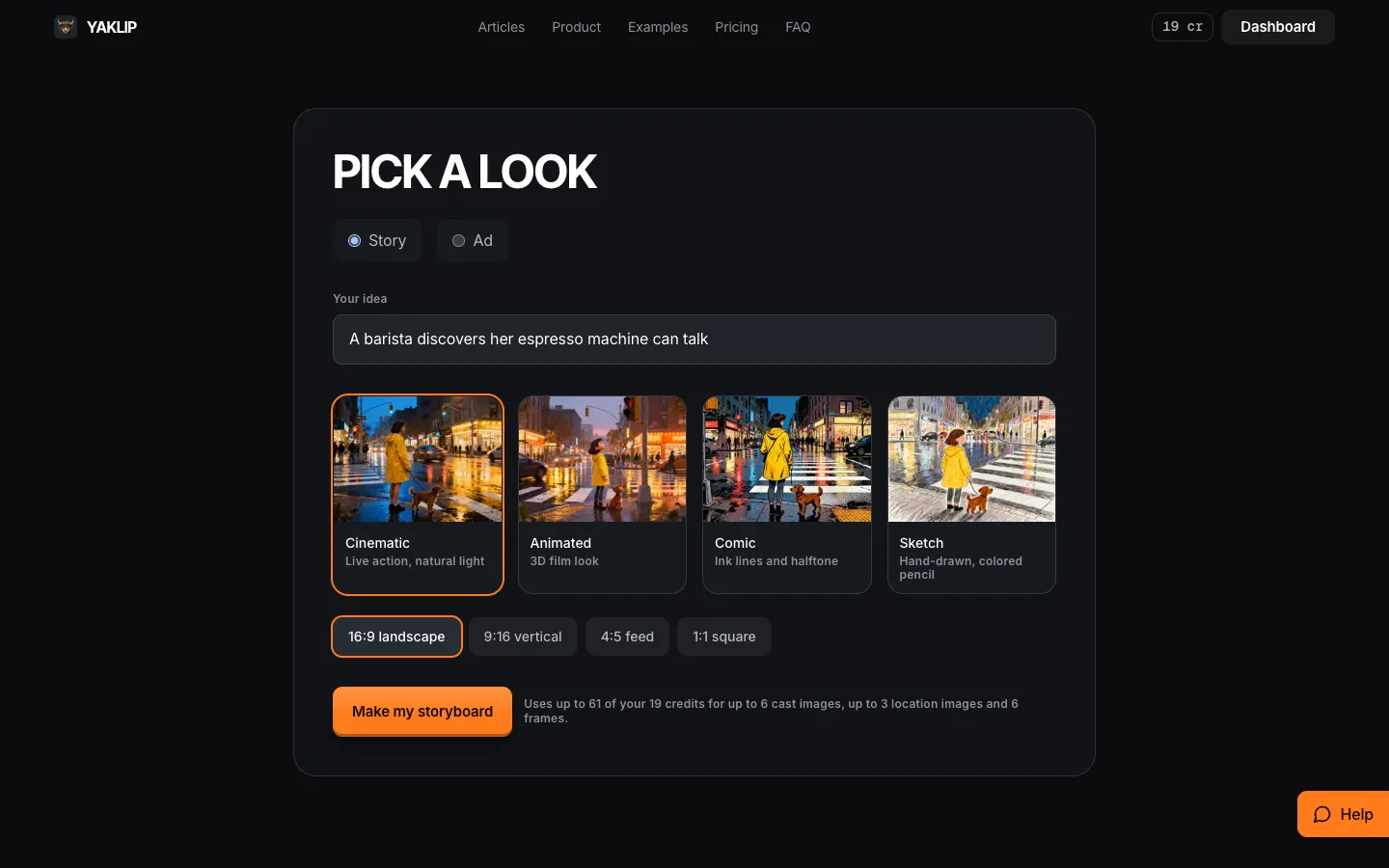
Quick Start in Yaklip: type one sentence, choose Story or Ad, then pick a look and a format (screenshot from November 2026).
If you are running a simple ad idea, try the Quick Start Ad mode: drop in a product photo and Yaklip outputs an ad storyboard with shots already mapped out. You can edit the script copy, reorder shots, or swap the hook before moving on.
Step 2: Build your cast and locations
Before generating any frame images, set up your character and location references. Yaklip stores these as reusable assets. Upload a character photo or generate one with the AI image tool, then save it to your project library.
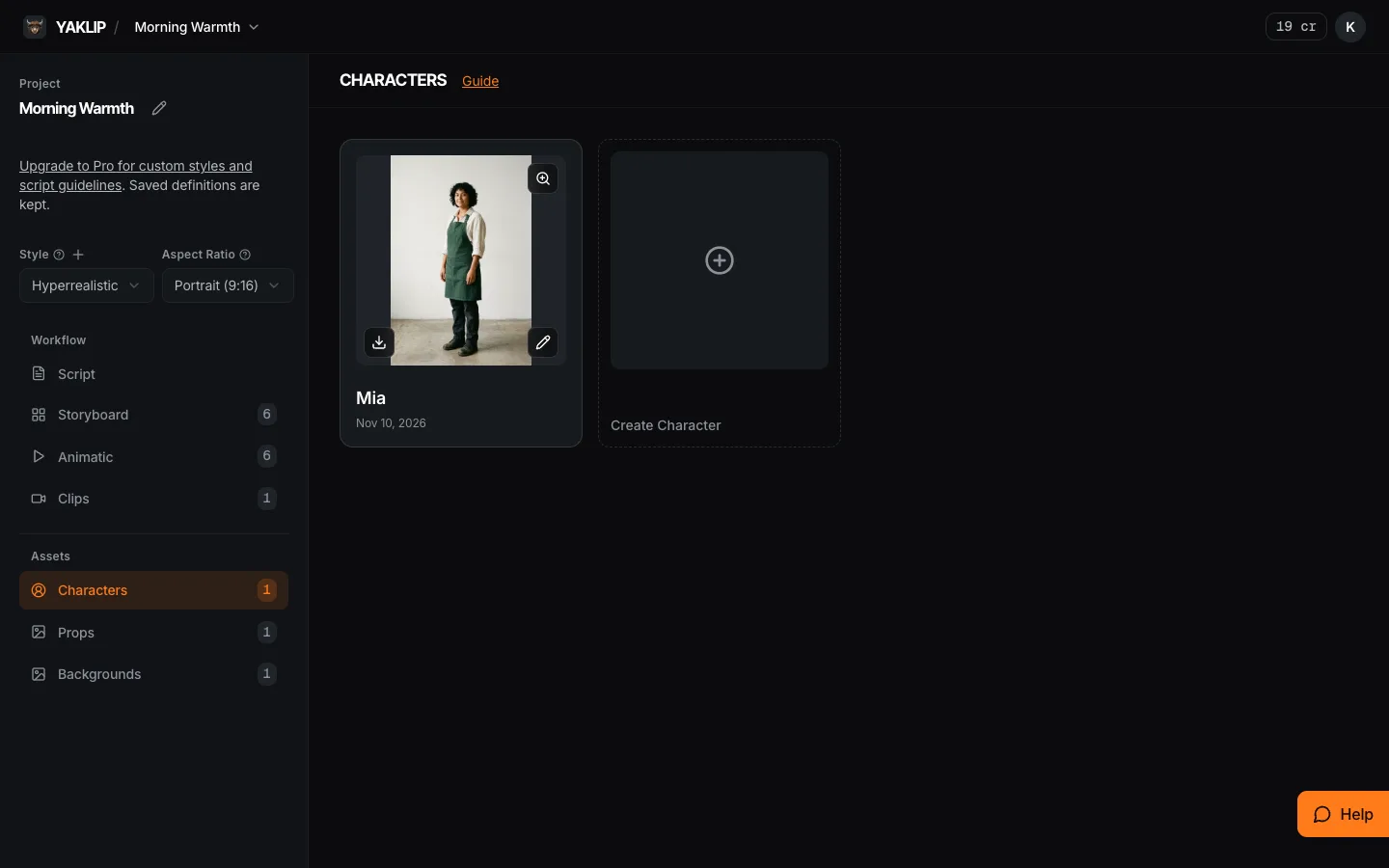
The Characters tab keeps each cast member as a saved reference image. Every frame you generate uses it.
This is the step most creators skip when working in generic image generators, and it is where consistency breaks down. When every frame generation references the same character image, the AI has a visual anchor rather than interpreting a text description fresh each time. Note that image references guide the generation but do not guarantee an exact match in every clip.
Step 3: Generate storyboard frames
With your cast and locations saved, start building frames. For each shot in your script, Yaklip generates a still image using your character and location references as anchors. A single frame image costs 4 credits (as of November 2026).
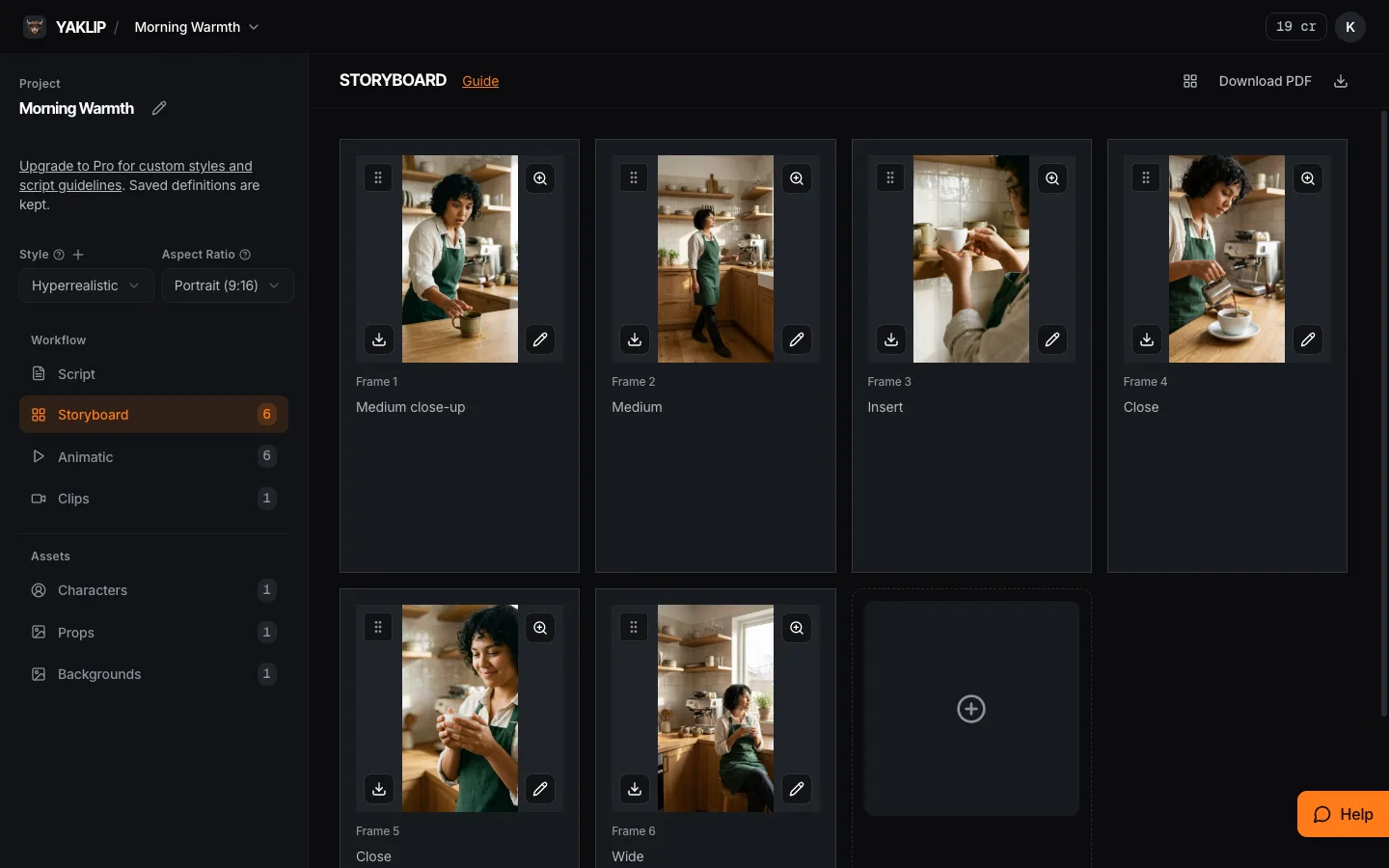
A six-frame storyboard in Yaklip. Each frame shows its shot size, and you can edit or regenerate one frame at a time.
Review each frame before moving on. If a frame looks wrong, with the wrong expression or wrong product placement, regenerate that panel before animating it. Fixing a still costs 4 credits; re-generating a 5-second clip costs 8 to 35 credits on the standard models, and more on Kling 3.0 and Veo. Getting frames right first saves both time and credit budget.
The animatic MP4 export takes up to 60 frames or 3 minutes. For a 30-second ad cut to 5-second clips, you are typically working with 6 panels. For a 60-second brand story, plan for 10 to 12 panels.
Step 4: Choose a video model and animate each frame
Select one or more frames to animate. Yaklip offers several video models at different quality and credit cost levels (as of November 2026):
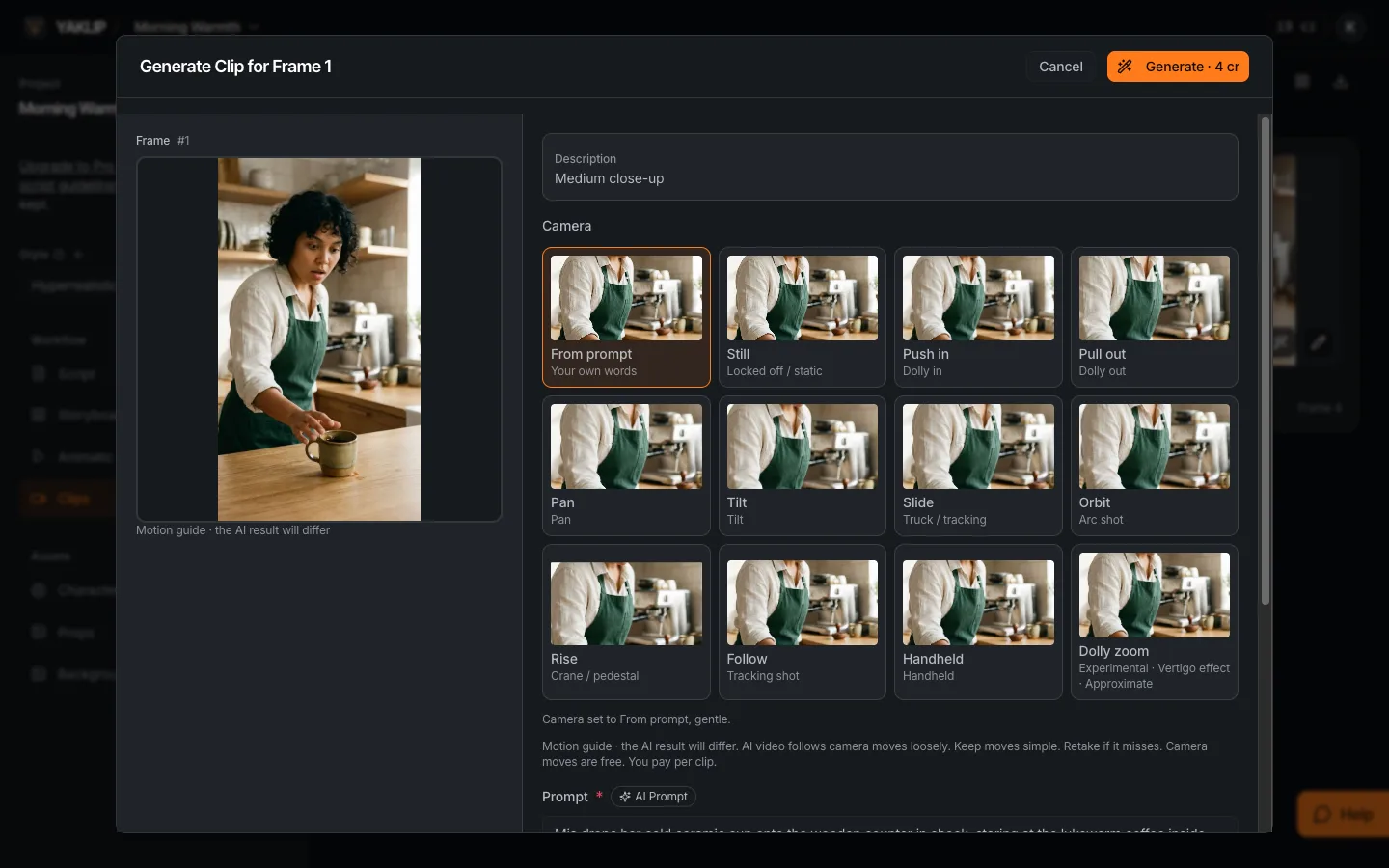
The clip dialog: your frame is the starting image. Pick a camera move, or keep From prompt and describe the motion yourself.
- Seedance 1 Lite, entry-level, lowest credit cost per clip
- Seedance 1 Pro Fast, 12 credits for a 5-second, 720p clip
- Seedance 1 Pro, higher quality version of the same model
- Kling 2.5 Turbo Pro, 35 credits for a 5-second clip; stronger motion fidelity
- Veo 3, text prompt only; available on all plans
- Veo 3.1 and Kling 3.0, available on Pro ($39/month) and Studio ($99/month) plans only
Add a motion prompt to each frame before generating, something like "slow push-in," "character turns toward camera," or "product rotates on surface." The model uses your frame image as a starting point and your prompt to decide what moves and how.
If you bring your own API key (from your provider account), that specific generation costs 0 Yaklip credits. You will still be billed separately by your provider. This can make sense for heavy-volume projects, but check your provider's per-second rates before switching over entirely.
Step 5: Review clips and build your animatic
Once clips are generated, review each one inside Yaklip. If a clip does not work, regenerate it. When you are happy with your shots, Yaklip can compile them into an animatic MP4, a rough cut with hard cuts between clips, supporting up to 60 frames or 3 minutes of total runtime.
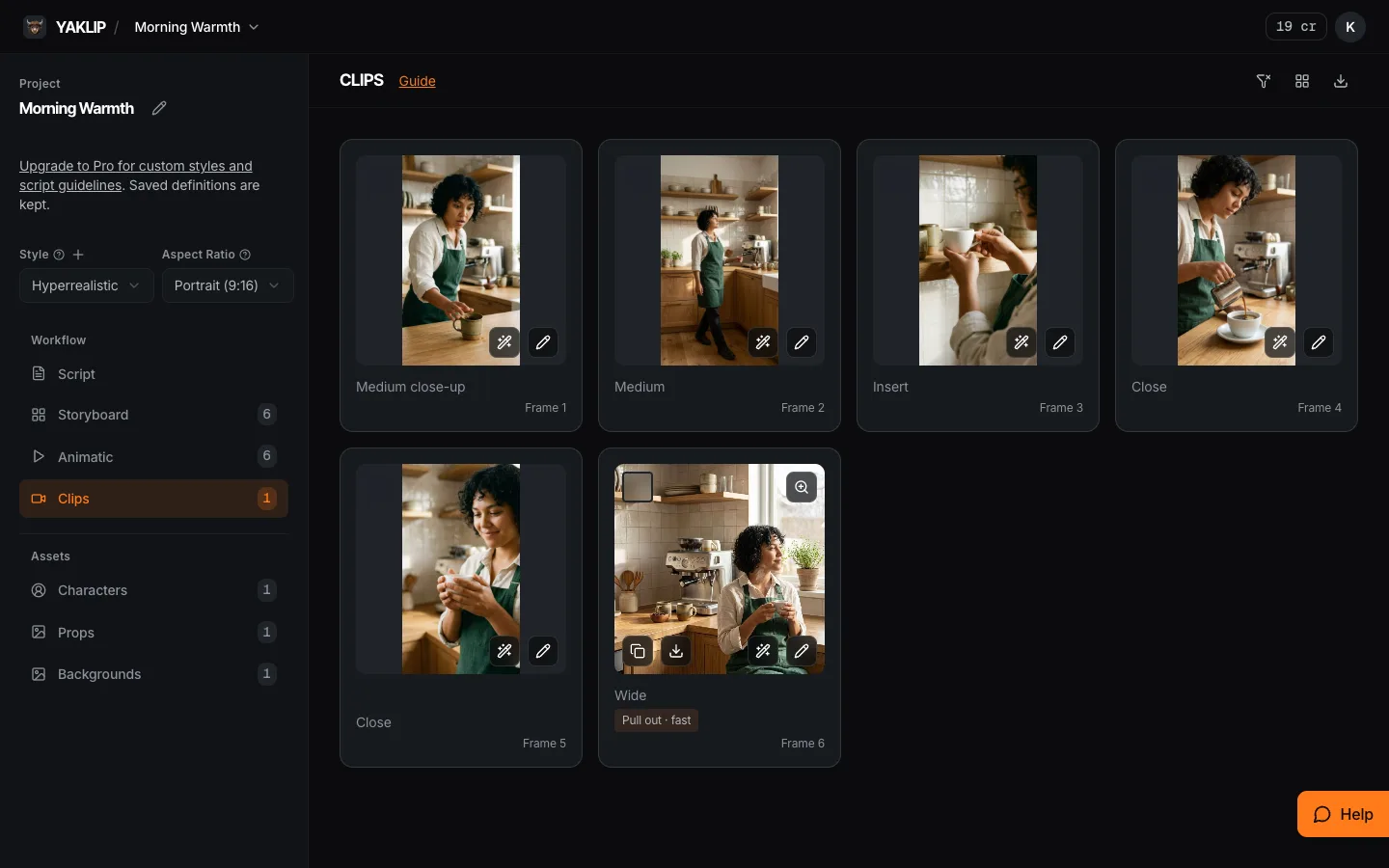
The Clips tab has one card per frame. A finished clip shows its camera move, here Pull out, fast.
Free plan exports come out at 720p with a small Yaklip watermark. Creator, Pro, and Studio plans export at 1080p without the mark. If you want a voiceover track on the animatic, connect your ElevenLabs key in settings and select the voiceover during export.
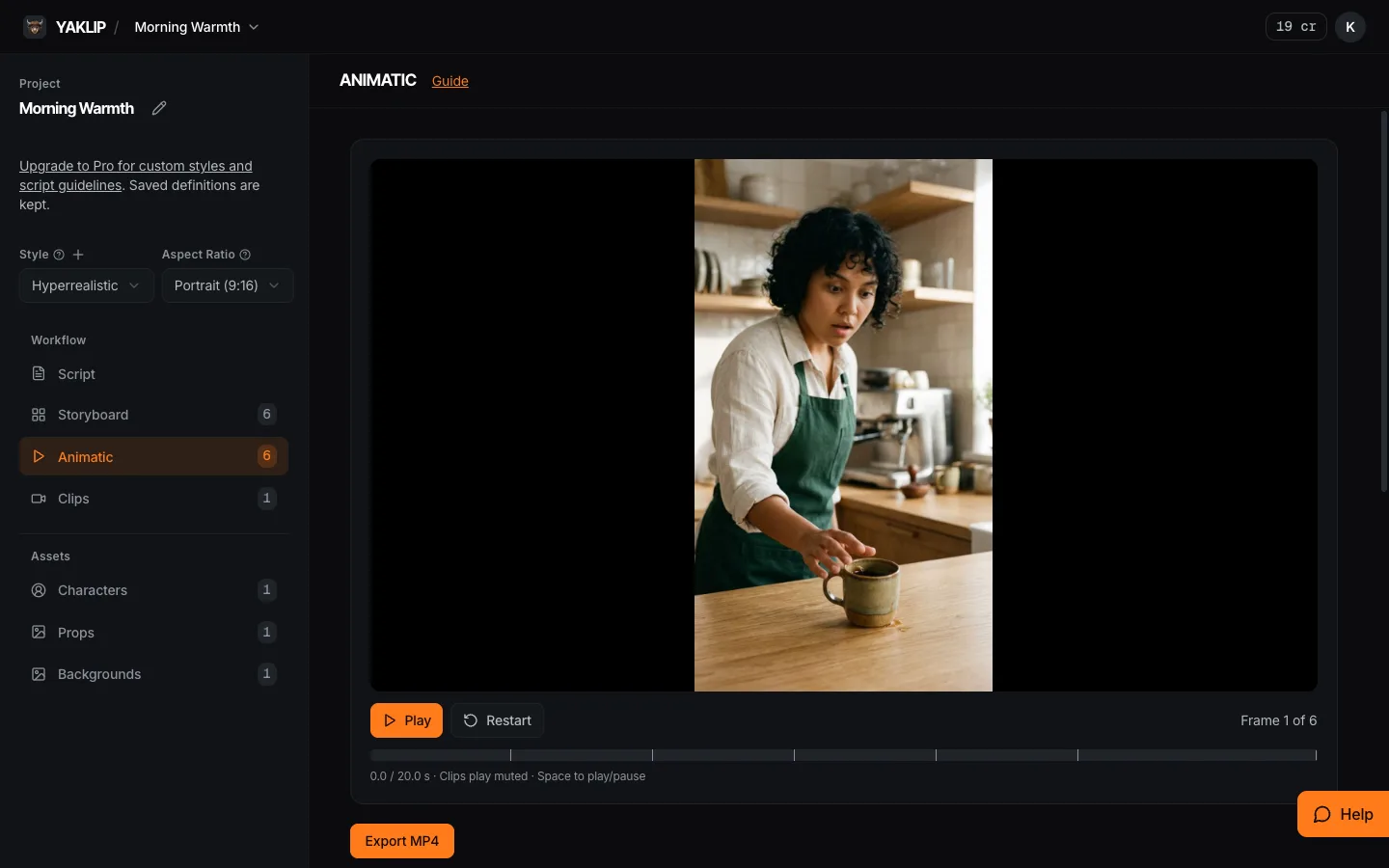
The Animatic tab plays your frames and clips in story order. Export MP4 creates the review cut.
The animatic is a review and approval tool, something you can share with a client or team for sign-off before spending time in a full edit suite. It is not a finished ad.
Step 6: Export and finish in your editor
Export your clip ZIP or the animatic MP4 from Yaklip. Take those assets into your video editor to:
- Trim clip lengths to match your target cut (15 seconds, 30 seconds, or longer)
- Add music, sound design, and captions
- Apply color grading or brand overlays
- Add end cards or call-to-action graphics
- Upload to your ad platform or social channel
None of these steps happen inside Yaklip. They are intentionally left to your existing editor. That keeps Yaklip focused on what it does: getting you from idea to approved, organized assets fast.
Understanding the credit math
Yaklip sells credits. Every AI generation costs credits from your plan balance. Here is a quick cost reference for common tasks (as of November 2026):
- Frame image: 4 credits each
- 5-second Seedance 1 Pro Fast clip: 12 credits
- 5-second Kling 2.5 Turbo Pro clip: 35 credits
A six-shot ad using Seedance 1 Pro Fast would cost roughly 72 credits in clip generation alone (6 × 12), plus 24 credits for frames (6 × 4), coming to 96 credits total for a clean first pass. The Creator plan at $19/month includes 900 credits, which gives you comfortable room for multiple projects and re-generations each month.
Plans at a glance (as of November 2026):
- Free, $0: 120 credits at sign-up, then 20/month. No rollover.
- Creator, $19/month: 900 credits/month. No rollover.
- Pro, $39/month: 2,000 credits/month. Unused credits roll over. Includes Veo 3.1 and Kling 3.0.
- Studio, $99/month: 5,500 credits/month. Unused credits roll over. Includes Veo 3.1 and Kling 3.0.
For current plan details, credit costs per model, and billing terms, check the official Yaklip help pages at yaklip.com/help/plans-and-billing, yaklip.com/help/how-do-credits-work, and yaklip.com/help/which-ai-model-should-i-use. Prices and model availability can change, so always confirm before starting a large project.
How Yaklip compares to other storyboard to video AI tools
Boords is built around traditional storyboard creation with AI-assisted frame generation. It is strong for pre-production planning but does not natively animate frames into video clips. You export your board and take assets elsewhere for video generation.
LTX Studio (by Lightricks) handles script-to-storyboard-to-video in one flow, with controls over shot composition and camera angles. It skews toward longer-form narrative projects and filmmaking use cases rather than short ad formats.
Katalist moves quickly from script to storyboard and exports to Premiere Pro, but like Boords, its main strength is the board itself rather than animated clip output.
Higgsfield focuses on social content creators and can go from storyboard frames to generated video with motion. It is strong for short-form clips but does not carry a persistent cast library across projects the way Yaklip does.
HeyGen specializes in AI avatar video, presenters on screen delivering a script, rather than storyboard-based narrative clips. It is a different workflow aimed at talking-head content.
Yaklip's clearest advantage is the workspace model: cast, locations, frames, and clips all live in one project file, and the character references carry through every generation rather than being re-entered per shot.
Tips to get better clips from each frame
- Keep motion prompts specific. "Subject walks left" produces more consistent results than "character moves." The more precise the instruction, the less the model improvises.
- Use the frame image as your anchor. A well-composed, well-lit frame image gives the video model a cleaner starting point. Blurry or busy reference frames tend to produce messier motion.
- Plan your cut points before generating. If shot 3 ends with a character looking right, start shot 4's frame with the character already in that position. Continuity across cuts is your job. The model handles motion within a single clip.
- Regenerate stills before animating. At 4 credits per frame versus 8 to 35 per 5-second clip on the standard models, it is always cheaper to fix the still first.
- Test one clip before batching. Generate clip 1 to check that your motion prompt style and model choice work before spending credits on all remaining frames.
How to get started
Start a new project and generate your script
Open Yaklip, create a new project, and enter your concept. Yaklip's AI drafts a shot-by-shot script you can edit, reorder, or refine before anything is generated. For ad projects, use Quick Start Ad mode with a product photo to get a storyboard structure instantly.
Build your cast and location library
Upload or generate character and location images and save them to your project library. These reusable references are what Yaklip passes to the image model when creating each frame, reducing character drift across shots.
Generate storyboard frames from your script
For each shot, generate a still frame using your saved cast and location references as anchors. Each frame costs 4 credits (as of November 2026). Review and regenerate any frames that look off before moving to video. Fixing a still is far cheaper than re-running a clip.
Select a video model and add a motion prompt to each frame
Choose your model, either Seedance 1 Pro Fast (12 credits/clip) for speed and economy or Kling 2.5 Turbo Pro (35 credits/clip) for stronger motion quality, and write a specific motion prompt for each frame, such as 'slow push-in' or 'character turns to camera.'
Animate frames into clips and review
Submit frames for generation. When clips return, review each one inside Yaklip. Regenerate any clip that does not match your intent before moving on. All generated assets stay organized in your project.
Export your animatic or clip ZIP
Compile approved clips into a Yaklip animatic MP4 (up to 60 frames or 3 minutes, 1080p on paid plans) for client review, or export a clip ZIP to take into your external editor. Add voiceover to the animatic by connecting your ElevenLabs key in settings.
Finish the video in your external editor
Import clips into your video editor to trim lengths, add music, captions, color grading, end cards, and any other finishing touches. Then upload directly to your ad platform or social channel from the editor.
Frequently asked questions
How do I keep the same character consistent across all my storyboard frames?
Save your character image to Yaklip's project library before generating any frames. Each frame generation references that saved image as a visual anchor, reducing drift between shots. References guide the model but do not guarantee a pixel-perfect match in every clip, so review frames before animating them.
How many credits does it cost to generate a video clip in Yaklip?
As of November 2026, a 5-second Seedance 1 Pro Fast clip costs 12 credits and a 5-second Kling 2.5 Turbo Pro clip costs 35 credits. A still frame image costs 4 credits. If you use your own API key from your provider, that generation costs 0 Yaklip credits, but your provider bills you separately.
Can I do storyboard to video AI for free in Yaklip?
Yes, with limits. The Free plan gives you 120 credits at sign-up and 20 credits per month after that. That covers a few frame images and one or two short clips, enough to test the workflow.
Does Yaklip add music or captions to my video automatically?
No. Yaklip exports clips and an animatic MP4, but music, captions, end cards, and ad-platform publishing all happen in your external editor or ad tool. The animatic includes one selected voiceover track if you connect your own ElevenLabs key. For talking shots, Creator, Pro and Studio plans can make talking and lip-sync clips with OmniHuman 1.5: a frame plus a voiceover or uploaded audio under 35 seconds, at 16 credits per started second (as of November 2026).
What is an animatic and how is it different from a finished video?
An animatic is a rough-cut preview built from your storyboard clips with hard cuts between shots and minimal audio, typically one voiceover track. It is used for client review and approval, not as a final deliverable. Yaklip's animatic supports up to 60 frames or 3 minutes; finishing work like trimming, music, and color grading happens in your video editor.
Which Yaklip plan should I choose for making short video ads?
For occasional ad projects (1-2 per month), the Creator plan at $19/month with 900 credits is usually enough. For teams running multiple ad campaigns each month or using higher-quality models like Veo 3.1 and Kling 3.0, the Pro plan at $39/month (2,000 credits, with rollover) is a better fit. Check yaklip.com/help/plans-and-billing for current details.